Table of Contents (17)
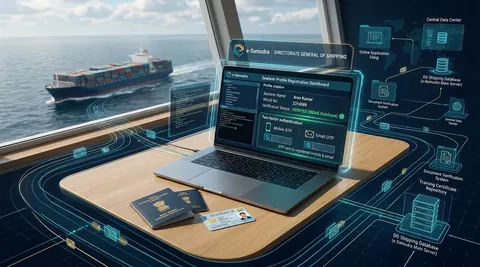
Ask any marine engineer or deck officer who has visited an RPSL manning agency or opened the MMD examination booking portal recently, and they will tell you the same thing: the old legacy INDoS e-Governance system is being phased out, and the e-Samudra portal (esamudra.dgshipping.gov.in) is now the central digital backbone for every Indian seafarer.
The Directorate General of Shipping (DGS), Government of India, issued formal circulars directing all seafarers—from engine and deck cadets to ratings, petty officers, and senior management—to complete their initial profile setup on e-Samudra. If you fail to migrate your profile, your company cannot log your shipboard sign-on, your sea time endorsement will stall, and you will not be able to book MMD written or oral examination seats for your MEO Class 4, Class 2, or Chief Mate certificates.
Setting up your profile takes less than ten minutes, but a single oversight during verification can lock your digital maritime profile with incorrect data, resulting in weeks of emails to the DGS technical helpdesk. Here is the complete, practical step-by-step breakdown of how to migrate your INDoS profile to e-Samudra safely.
1. Pre-Registration Checklist: What You Need in Hand
Before opening the portal, make sure you have the following ready on your desk:
| Item | Required Document / Asset | Purpose & Verification |
|---|---|---|
| 1 | Active INDoS Number | e.g., 09EL1234, 15ZL5678 |
| 2 | Original Indian Passport | Verify exact spelling, date & place of birth letter-for-letter |
| 3 | Continuous Discharge Certificate (CDC) | Check CDC number and personal particulars |
| 4 | Active Mobile Phone | Must receive SMS OTP on the number registered with your old INDoS |
| 5 | Active Email Access | Must receive Email OTP on the email linked to your INDoS record |
| 6 | Stable Desktop / Mobile Browser | Mozilla Firefox or Google Chrome recommended |
Crucial Watchkeeping Tip:
Do not attempt this migration on a patchy shipboard satellite connection or with a phone that cannot receive standard SMS. You must authenticate a two-factor One-Time Password (OTP) sent simultaneously to your phone and your registered email inbox.
2. Step-by-Step Walkthrough: Setting Up Your e-Samudra Profile
| Step | Action | Operational Detail |
|---|---|---|
| 1 | Access Portal | Navigate to https://esamudra.dgshipping.gov.in/ |
| 2 | Select Category | On the homepage tiles, locate Seafarer and click Register |
| 3 | Input INDoS | Enter your active INDoS number on the welcome screen and submit |
| 4 | Dual OTP Check | Enter the 6-digit SMS OTP and Email OTP sent to your registered contacts |
| 5 | Data Audit | Review Given Name, Surname, DOB, Place of Birth & Discipline stream |
| 6A | If Data Accurate | Set a secure password, solve captcha, and submit to finalize registration |
| 6B | If Errors Found | STOP! Do NOT submit. Email dgs-helpdesk@gov.in with passport copy |
Step 1: Navigate to the Official e-Samudra Portal
Open your web browser and navigate to the official portal:
- URL:
https://esamudra.dgshipping.gov.in/(or via the main gateway atdgshipping.gov.in).
The homepage displays multiple registration portals designed for different maritime entities.
Step 2: Choose Your Registration Category
On the homepage, scroll down to the “Choose Your Registration Portal” section. You will see multiple tiles:
- Sailing Vessels
- Shipping Entity (RPSL agencies, ship owners)
- Other Services
- Seafarer
Click on the “Register” button located directly inside the Seafarer box.
Step 3: Input Your INDoS Number
You will be redirected to the seafarer welcome screen:
“Welcome to the Seafarer Portal. Log in with your INDoS number to access your profile on the new system.”
Enter your existing INDoS Number in the input field and click Submit.
Step 4: Dual-Channel OTP Authentication
Once you click submit, the system triggers two separate 6-digit One-Time Passwords (OTPs):
- SMS OTP: Dispatched to your registered mobile number (the screen displays the masked phone number, e.g., ending with
XXXX2595). - Email OTP: Dispatched to your registered email address linked to your legacy INDoS record.
Enter both OTPs in their respective fields and click Verify.
Important Operational Note:
If the displayed phone number or email address does not belong to you or has been deactivated, do not attempt guess logins. See the troubleshooting section below on updating legacy contact credentials.
3. The Critical Profile Audit: Check Before You Lock
Once the OTP is validated, the portal opens the Personal Details & Profile Verification Screen. This is the most crucial step of the entire procedure.
| Profile Field | Sample Record | Verification Standard |
|---|---|---|
| INDoS Number | 14EL9876 | Fixed unique identifier |
| Full Name | ARUN VIKRAM SHARMA | Combined given name and surname |
| Date of Birth | 15/08/1996 | Must match Passport & 10th standard certificate |
| Given Name | ARUN VIKRAM | First name + middle name |
| Middle Name | VIKRAM | Middle name (if applicable) |
| Last Name (Surname) | SHARMA | Mandatory under new schema & IMO GISIS standard |
| Discipline Stream | E | Marine Engineering (E), Nautical (N/L), GP (G) |
| Place of Birth | MUMBAI | Must match Passport letter-for-letter |
| Birth State | MAHARASHTRA | State of birth |
| Country of Birth | INDIA | Country of nationality |
| Identification Mark | MOLE ON RIGHT COLLARBONE | Must match CDC and Medical Certificate |
You must meticulously inspect every line on this screen against your original Indian Passport:
- Given Name & Last Name (Surname):
Under the new e-Samudra database schema, the surname field is mandatory. Check that your first name and family name are not inverted or duplicated. - Discipline / Stream Prefix:
Confirm your professional discipline code:E— Marine Engineering (Engine Officers / Cadets)NorL— Nautical (Deck Officers / Cadets)G— General Purpose Rating (GP Rating)Z— Saloon / Open CDC Ratings
- Place of Birth & Birth State:
Compare this directly with Page 2 of your Indian Passport. If your passport states “KANPUR” and the portal displays “KANPUR NAGAR” or a blank field, take note immediately. - Identification Marks:
Verify that the physical identification mark matches your CDC and original medical record.
4. The Golden Warning: Do NOT Submit If Data Is Incorrect
Critical Warning for All Seafarers:
If ANY piece of data on this verification screen is incorrect, misspelled, or mismatched with your passport:
DO NOT set a password. DO NOT enter the captcha. DO NOT click Submit.
Once you enter a password, solve the captcha, and confirm the screen:
- Your profile is marked as “Verified & Registered” in the e-Samudra master database.
- The fields are immediately locked from user editing.
- Correcting an error post-registration requires filing a formal digital grievance, producing notarized affidavits or passport copies, and waiting for an MMD surveyor or DGS administrator to manually unlock the record.
What to do if there is a mismatch:
Take a clear screenshot of the error screen. Send an official email from your registered email ID to the DGS technical desk at dgs-helpdesk@gov.in with:
- Subject:
Discrepancy in e-Samudra Profile Migration - INDoS [Your INDoS Number] - Attached: Self-attested copy of your Indian Passport, CDC, and INDoS certificate.
- Description: Clearly stating which field is mismatched before completing registration.
5. Setting Your Password and Final Confirmation
If all verified details match your official documents:
- Set a Strong Password:
Create a password that meets standard security requirements (minimum 8 characters, containing uppercase letters, lowercase letters, numbers, and at least one special character like@,#, or$). - Confirm Password: Re-type your password. Store this securely in a password manager.
- Enter Captcha: Input the displayed alphanumeric captcha characters accurately.
- Click Submit: Confirm the submission.
Upon successful completion, the system returns a green banner:
“User Profile Created Successfully. You can log in into Seafarer Profile.”
You can now log in directly via the e-Samudra login gateway using your INDoS number and your newly created password.
6. Comparison: Old INDoS Profile vs. New e-Samudra Portal
| Feature / Parameter | Legacy INDoS Profile (dgshipping.gov.in) | New e-Samudra Portal (esamudra.dgshipping.gov.in) |
|---|---|---|
| Authentication Architecture | Single-factor (INDoS + Static Password) | Multi-factor (Dual SMS & Email OTP authentication) |
| Database System | Legacy siloed relational tables | Modern centralized microservices architecture |
| Name Field Verification | Single unstructured name field common | Strict separation of Given Name, Middle Name, and Surname |
| Sea Service Tracking | Manual company uploads; frequent sync lags | Automated real-time RPSL sign-on / sign-off validation |
| Examination Integration | Separate e-Pariksha / MMD booking modules | Integrated end-to-end MMD exam seat booking & seatime calculation |
| Biometric Integration | Loosely tied to BSID database | Native synchronization with Seafarer Identity Document (SID) |
| Mobile Accessibility | Desktop-oriented legacy layout | Mobile-responsive user interface |
7. Troubleshooting Common Roadblocks
Scenario A: Registered Mobile Number or Email Is Inactive
Many seafarers took their INDoS number 5 to 10 years ago during pre-sea training and have since changed their phone numbers or forgotten old email passwords.
- Problem: You cannot receive the 6-digit OTP to complete step 4.
- Solution: Access the legacy DG Shipping e-Governance contact update link or send an email to
dgs-helpdesk@gov.inattaching your passport, CDC, and a request letter mentioning your new mobile number and email ID. Once updated on the server, re-initiate registration on e-Samudra.
Scenario B: Single Name on Passport (No Surname)
In India, many seafarers have only a single name printed under “Given Name” on their passport, leaving “Surname” blank.
- Problem: e-Samudra expects both a Given Name and a Surname.
- Solution: Check how your name was historically entered in INDoS. In many maritime databases, seafarers with a single name have their name repeated or recorded as “LNU” (Last Name Unknown). If your profile splits your single name incorrectly, raise a helpdesk ticket before locking your credentials.
Scenario C: Sea Service or STCW Certificates Missing After Login
- Problem: Upon logging into your new profile dashboard, you notice a previous sea contract or a recently completed refresher course (such as PSSR Amendment Course ID 957) is not visible.
- Solution: Do not panic. The legacy migration is conducted in staged database batches. Courses approved by DG Shipping training institutes take 24 to 48 hours to batch-sync. Verify that your MTI (Maritime Training Institute) uploaded your batch details with your exact INDoS number.
8. Maritime Oral Exam Viva: Regulatory Context (STCW & DGS)
During MEO Class 4, Class 2, or Nautical Mate/Master oral examinations, surveyors frequently question candidates on the regulatory framework governing seafarer documentation and national maritime databases.
Key Oral Viva Topic: Indian maritime administration compliance, DG Shipping digital databases, and STCW certificates verification.
Surveyor: “Candidate, why is the Directorate General of Shipping placing strict emphasis on centralized digital seafarer records like e-Samudra and BSID?”
Candidate: “Sir, under STCW 1978 as amended (Regulation I/9 - Medical standards and the issue and registration of certificates) and Regulation I/2, every maritime administration is required to maintain an electronic register of all certificates, endorsements, and seafarer qualifications accessible to other administrations and shipping companies. Furthermore, under the Maritime Labour Convention (MLC 2006, Regulation 1.4 - Recruitment and Placement), digitized tracking prevents fraudulent sea service documentation, ensures seafarers are placed through licensed RPSL entities, and guarantees verified compliance before sign-on.”
Surveyor: “What is the significance of the discipline prefix in an Indian seafarer’s INDoS record?”
Candidate: “Sir, the discipline code designates the functional branch of maritime qualification: ‘E’ indicates Marine Engineering Officer competency pathways, ‘N’ or ‘L’ denotes Nautical Deck Officer certification, ‘G’ identifies General Purpose Ratings under STCW II/4 and III/4, and ‘Z’ represents Open CDC or Saloon staff qualifications. This prevents misallocation of seatime and examination assessments between departments.”
9. Summary for Seafarers
The transition to e-Samudra is not optional—it is a mandatory national upgrade designed to protect your sea-time integrity, streamline examination booking, and eliminate paperwork bottlenecks with MMD and shipping companies.
Take the time today to:
- Open
https://esamudra.dgshipping.gov.in/. - Select Seafarer and click Register.
- Authenticate your mobile and email OTPs.
- Thoroughly audit your name, birth details, and discipline stream against your passport.
- Set your permanent password only after confirming 100% data accuracy.
Keep your login credentials safe, ensure your registered email remains active, and you will have zero issues when booking your next MMD exam or signing on for your next contract.
Frequently Asked Questions
Discussion & Feedback
0Have a doubt, memory trick, or exam update? Share your insights with fellow mariners.